Digital Camera Filter Online
Give any photo the look of an older digital camera, and pick the era you want it to come from.
No photo? Try a sample
Presets in this editor
Warm Digicam
Loads automatically on this pageGolden-hour point-and-shoot warmth with punchy colors.
The exact values this preset sets, so you can rebuild or tweak it by hand:
iPhone 4
Soft edges, gentle grain, slightly warm 2010s smartphone vibe.
Grain 38 · Softness 32 · Vignette 18
Cool CCD
Cleaner, slightly cool vintage sensor feel (subtle green/cyan lean).
Grain 22 · Softness 14 · Aberration 12
Flash Pop
Harsh highlights + glow like a built-in flash at night.
Bloom 20 · Grain 18 · Contrast 60
Soft Nostalgia
Dreamy, faded, warm — heavy softness + bloom for a nostalgic vibe.
Softness 48 · Grain 30 · Bloom 26
2000s Y2K
Warm, faded early-digicam color with soft grain and a gentle vignette.
Grain 30 · Fade 18 · Softness 16
Disposable Flash
Hard close-flash glow, warm grain, casual single-use snapshot energy.
Grain 26 · Bloom 24 · Softness 12
Huji-Style
Warm flashed glow with grain, made for the corner date stamp.
Grain 29 · Softness 14 · Bloom 14
Dazz-Style
Cool CCD glow with extra bloom and old-sensor color fringe.
Grain 22 · Bloom 14 · Aberration 13
Kodak Gold
Golden film warmth with soft skin tones and fine grain.
Grain 22 · Warmth 63 · Softness 12
35mm Film
Fine grain and restrained, true-to-life analog color.
Grain 25 · Softness 14 · Vignette 8
Film Grain
Fine, even film texture over otherwise natural color.
Grain 35 · Softness 10 · Fade 10
Lomo Punch
Dark toy-camera vignette with loud, punchy color.
Vignette 30 · Grain 23 · Saturation 62
Vintage Fade
Old-print warmth with lifted blacks and darkened corners.
Grain 28 · Fade 21 · Softness 20
Polaroid
Washed instant-film fade with gentle warmth and a soft glow.
Softness 22 · Fade 21 · Vignette 20
70s Print
Heavily faded amber print: washed-out blacks, low saturation, soft detail, dark corners.
Fade 30 · Grain 28 · Softness 26
80s Print
Faded drugstore-print colour: warm, pink-leaning, low contrast, soft grain.
Grain 32 · Fade 26 · Softness 24
90s Snapshot
Point-and-shoot flash, coarse film grain, punchy lab colour, neutral warmth.
Grain 34 · Bloom 18 · Softness 12
Matcha Latte
Soft matcha green: pale soft highlights, a green-olive cast, gentle haze, clean detail.
Tint 80 · Softness 22 · Grain 18
Frequently Asked Questions
It is an effect that puts the look of an older digital camera back onto a photo: warmer or cooler color, a gentle grain, softer detail, and the slightly imperfect exposure those cameras produced. Modern phones remove all of that, so adding it back is what makes a photo read as an older digital shot.
Load a photo on this page and the Warm Digicam preset is applied automatically. Adjust warmth, grain, and fade until it looks right, then download. There is no sign-up, no watermark, and no upload: the photo is processed on your own device.
It depends on the feel you want. Late 1990s cameras were harsh and flashed, the mid-2000s CCD compacts were punchy and glowing, and the early-2010s camera phones were soft and warm. The era table on this page maps each period to the preset that matches it.
Yes, and that is the usual case. A clean, sharp phone photo going in and an older digital camera look coming out is exactly what the presets are tuned for. HEIC files from an iPhone work wherever the browser can decode them.
No. Everything runs locally in your browser using WebGL, and the exported file is generated on your device. Your photos are never sent to a server.
It recreates the parts that read as an older camera: the grain, the softness, the bloom in the highlights, and the lifted blacks. It does not reduce resolution or add JPEG compression artifacts, so your photo keeps its full detail. If you specifically want a low-resolution look, resize the export afterward.
Yes, they are the same thing written two ways. Digital camera filter, digital cam filter, and digicam filter all describe putting the look of an older digital camera back onto a photo, and this page handles all of them.
About This Tool
Digital cameras did not all look the same. A 1999 compact with a hard flash, a 2006 CCD point-and-shoot, and a 2011 camera phone each got the picture wrong in a different way, and those differences are exactly what people are chasing when they look for a digital camera filter.
This page is the entry point for all of them. Load a photo and the Warm Digicam preset is applied as a neutral starting point: golden point-and-shoot warmth with punchy color and a light grain. It suits almost any photo and is the safest first thing to try.
If you already know the era you want, use the guide further down. It breaks the digital camera years into three periods, describes what the cameras of each period actually did to an image, and links straight to the preset page tuned for it. That is faster than trying every preset one at a time.
People search for this in a lot of ways: a digital camera filter online, a digicam effect online, an online digicam editor, or just a way to make a photo look like an old digital camera. They all mean the same thing, and they all land here.
Everything is processed locally in your browser. Your photo is never uploaded, exports are generated on your device at up to 4096px on the longest edge, and there is no account and no watermark.
Choose settings for the photo you have
Compare the same source at 45% and 100% strength. These are generated example photos, not real-camera calibration or a skin-tone accuracy test. The edited versions were rendered with this editor; faces and framing are unchanged.
Daylight portrait
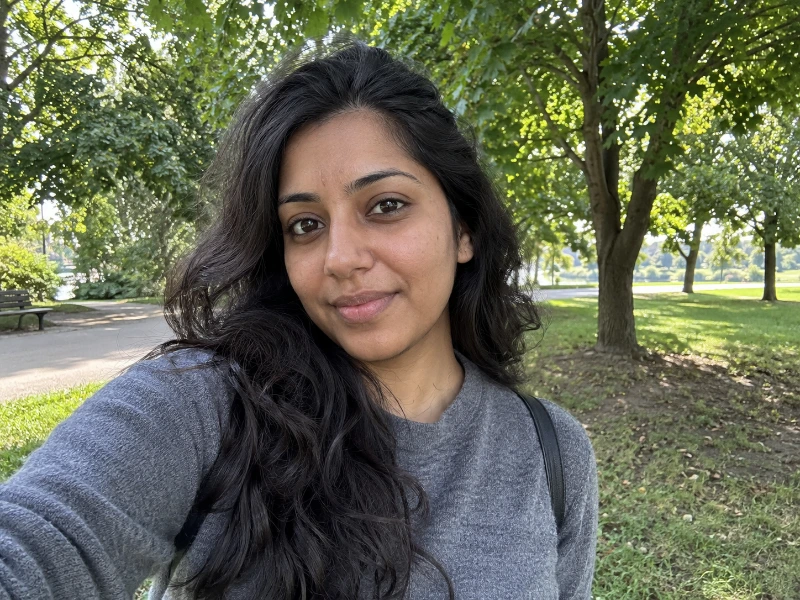
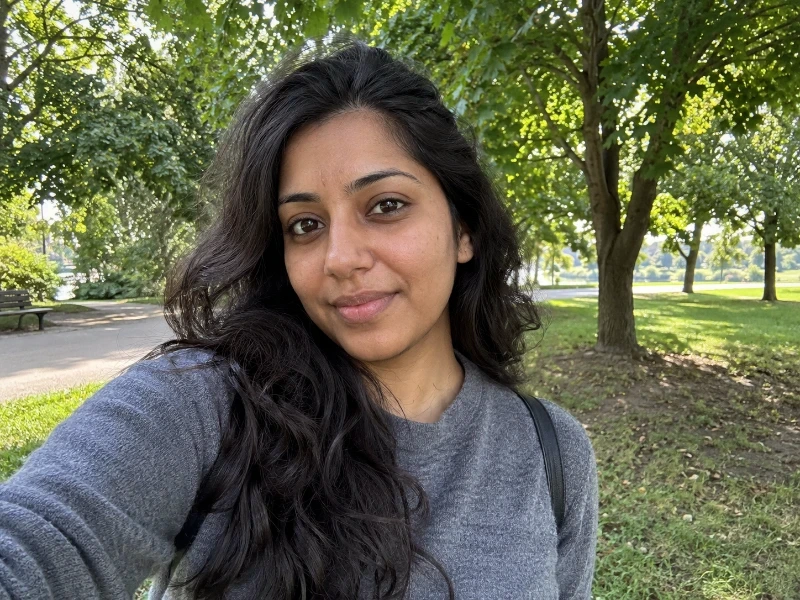
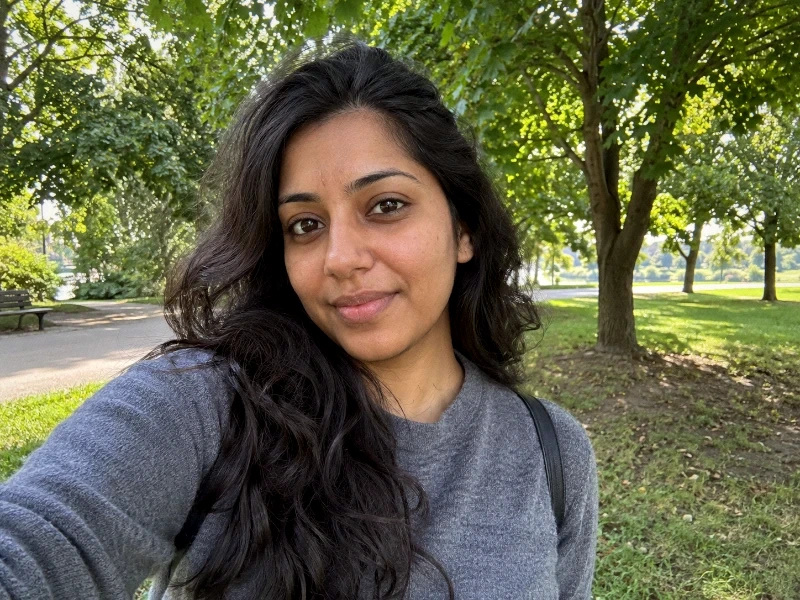
Start at 45% strength. Check the face before the background: if skin looks too orange, lower Warmth toward 50 before adding grain.
When to back off: More strength also means more warmth and texture. If skin loses detail, reduce strength or Softness; a faded look is not a reason to wash out a face.
Exact settings for this comparison
- grain
- 16
- softness
- 16
- contrast
- 54
- saturation
- 58
- warmth
- 56
- tint
- 50
- highlights
- 48
- shadows
- 52
- vignette
- 12
- aberration
- 8
- fade
- 8
- bloom
- 6
Only strength changes between the two grades. Original crop; textures, frame and date stamp off. In compatibility mode, unsupported controls are disabled and the result can differ.
Direct-flash night photo
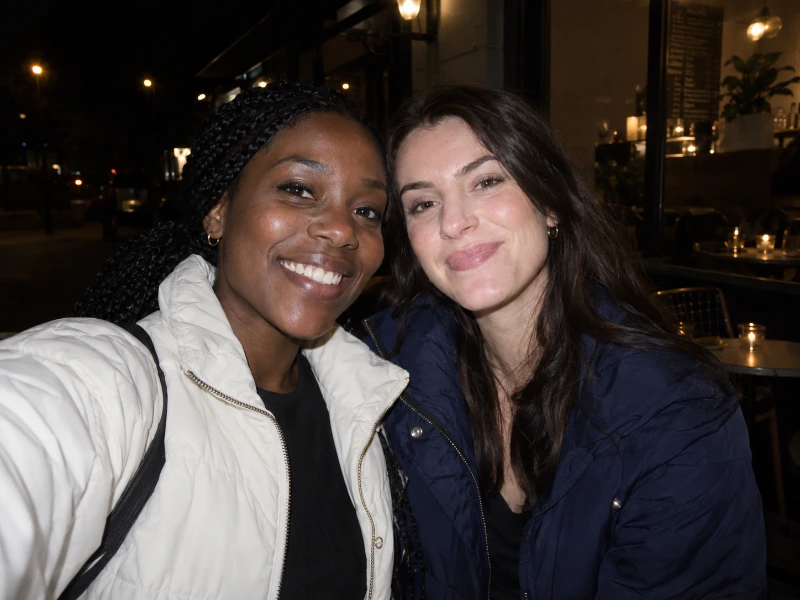
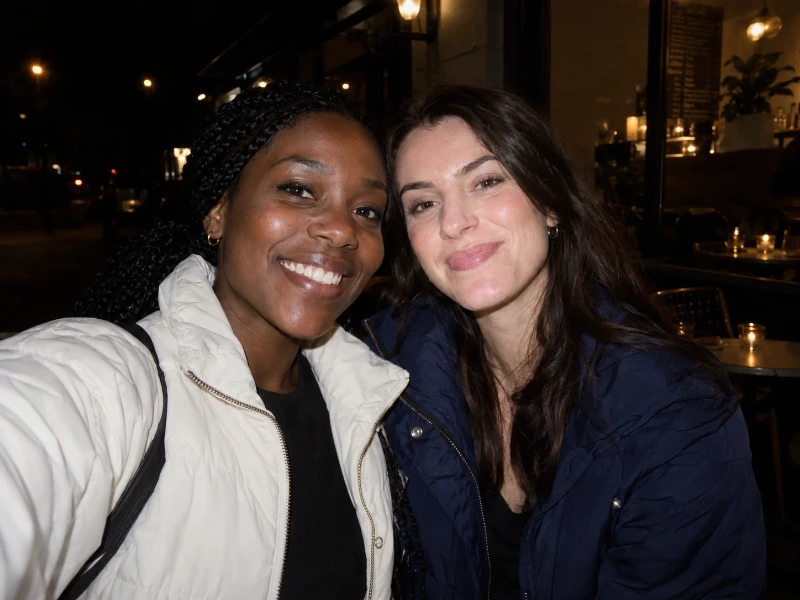
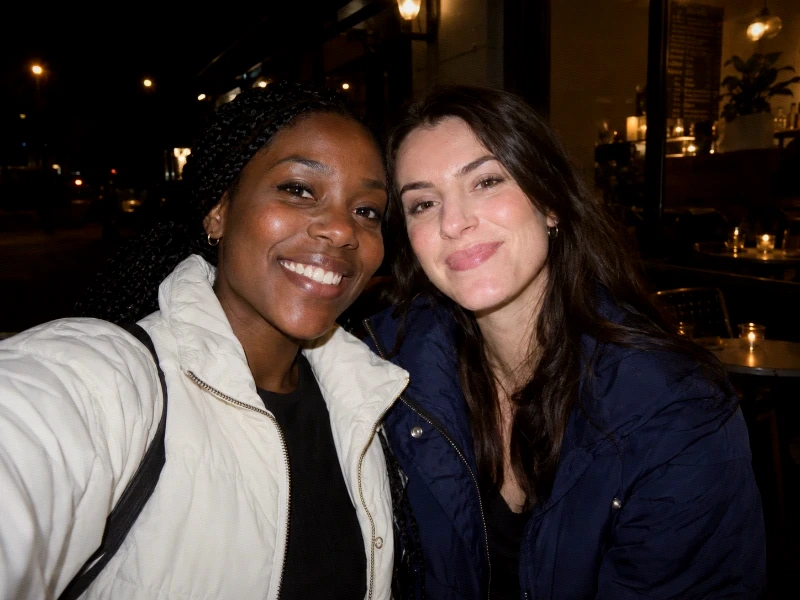
The source already has flash lighting. Check the white jacket and face highlights; keep Bloom low when lights already glow.
When to back off: A stronger grade cannot add a flash to an unlit scene or recover clipped highlights. Lower strength if the jacket or faces lose separation.
Exact settings for this comparison
- grain
- 18
- softness
- 10
- contrast
- 54
- saturation
- 58
- warmth
- 54
- tint
- 50
- highlights
- 46
- shadows
- 52
- vignette
- 12
- aberration
- 8
- fade
- 4
- bloom
- 8
Only strength changes between the two grades. Original crop; textures, frame and date stamp off. In compatibility mode, unsupported controls are disabled and the result can differ.
Friends in daylight



Judge every face, not just the brightest one. Keep the original crop and start at 45%; use the same settings for a small batch after checking each image.
When to back off: One setting may suit one face but not another. If darker faces lose detail or lighter ones look flat, back off contrast and strength rather than adding more fade.
Exact settings for this comparison
- grain
- 16
- softness
- 10
- contrast
- 50
- saturation
- 58
- warmth
- 54
- tint
- 50
- highlights
- 48
- shadows
- 52
- vignette
- 12
- aberration
- 8
- fade
- 8
- bloom
- 4
Only strength changes between the two grades. Original crop; textures, frame and date stamp off. In compatibility mode, unsupported controls are disabled and the result can differ.
For a more faded Y2K starting point, compare the other camera look. Learn how to correct a result in the settings guide.
One photo, three camera-inspired treatments
The subject and framing stay the same in all four examples. Compare the laptop highlights, wooden desk and hand to decide which direction suits your own photo.

Use the silver laptop, wooden desk and hand as reference points for brightness and color.

The laptop looks cooler than in the Y2K version. The desk remains warm: a cool treatment does not turn every surface blue.

The wooden desk looks warmer than in the CCD version, with visible texture across the laptop and darker shirt.

The laptop base and cup are much brighter, while the dark shirt stays deep. Watch those bright surfaces when choosing a stronger look.
These existing examples illustrate the looks; they are not a calibration of the current sliders. The edited versions also have different decorative date stamps, separate from color and texture. This indoor scene does not demonstrate portrait or night results.
Choose a digital camera look by the photo
Compact cameras varied by model, lighting and processing, so a year or sensor name does not identify one fixed color palette. These presets are stylistic approximations, not sensor simulations or exact camera replicas.
Cooler compact-camera color
Try Cool CCD for daylight streets, metal surfaces or a scene that already feels too warm. Check a white shirt or wall: cooling the whole photo can also make skin look less warm.
Current Cool CCD preset settings (0–100):
Warm everyday nostalgia
Try 2000s Y2K for casual portraits and indoor snapshots. Warm color and fade give a gentler starting point than a flash-heavy look; reduce Warmth if skin or indoor lighting is already orange.
Current 2000s Y2K preset settings (0–100):
A stronger flash-style snapshot
Try Disposable Flash for a close subject against a darker room or night background. It is a film-inspired alternative to the digital looks. A photo taken with direct flash gives it more to work with; the filter cannot create new lighting or recover a blown face.
Current Disposable Flash preset settings (0–100):
Mild or strong?
For a mild portrait edit, reduce Grain, Bloom and Softness from the chosen preset until eyes and skin texture stay readable. For a stronger daylight look, adjust color and contrast first, watching bright skies and white clothing. For night photos, keep existing noise in mind: added grain can hide shadow detail, and extra bloom can merge nearby lights. Compare with the original after each change.
Prefer softer detail with less fade? Try the iPhone 4 filter. For subject-specific adjustments, read best retro settings; for capture and editing choices, see how to get an old digital camera look.